
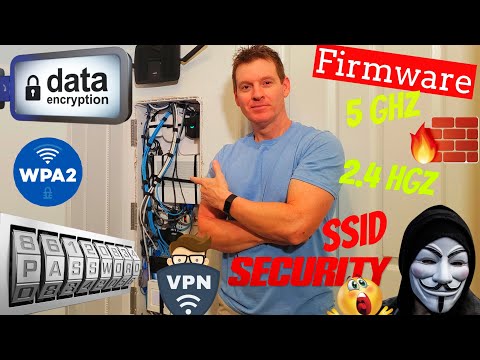
Discover eight expert tips to enhance the security and performance of your home network. From changing router settings to protecting smart devices and enabling encryption, this guide simplifies the essentials of internet safety. Bonus tips included for added protection.
NETGEAR Wireless Access Point (WAX630)
Linksys Max-Stream AC2600 MU-MIMO
Welcome back to the Ultimate Tech Hub! In today’s episode, I’m sharing eight expert tips for setting up a strong and secure home network. Whether you’re moving into a new home or simply looking to improve your current internet connection, these steps will help boost connectivity and protect your data without overwhelming you.
Tip #1: Change your network name (SSID) and password. Routers ship with default SSIDs and passwords, which are easy for hackers to guess. Change both in your Wi-Fi settings, and disable SSID broadcast for added security.
Tip #2: Choose the right Wi-Fi band. Dual-band routers offer both 2.4 GHz and 5 GHz. Use 2.4 GHz in larger or two-story homes for broader coverage. Opt for 5 GHz in smaller homes—it’s faster and more secure. Try different channels (like 1, 6, or 11) to reduce interference. Note that most IoT devices only support 2.4 GHz.
Tip #3: Encrypt your network using WPA2-Personal. It’s the most secure option available on many routers and defends against brute-force attacks.
Tip #4: Position your router in a central, open location. If your network panel limits placement, consider adding a wireless access point to improve coverage.
Tip #5: Update your router’s firmware regularly. Like your computer or smartphone, routers require updates to maintain security and performance. Check for firmware updates through your router’s settings.
Tip #6: Secure your smart devices—like ovens, thermostats, and lights—by changing default usernames and passwords, enabling multi-factor authentication, and installing software updates.
Tip #7: Optimize your printer’s security. Wireless printers can be a target for hackers. Follow the setup instructions carefully, change the default password, and update the firmware to prevent intrusions.
Tip #8: Prepare for troubleshooting. Keep a record of your devices’ settings and passwords. Learn how to hard reset your router and modem, as these are often the root of network issues. Also, have your ISP’s contact info readily available.
Bonus Tip #1: Install a VPN on all your devices to browse anonymously and improve performance.
Bonus Tip #2: Change the default admin name and password used to access your router’s settings. Most routers use “admin/admin” by default—change these immediately to prevent unauthorized access.
Bonus Tip #3: Enable your router’s firewall. Go to the security tab in your settings and activate both IPv4 and IPv6 firewall protections.
That wraps up our guide! If you found these tips helpful, please like the video, share it, and subscribe to the channel for more tech advice. Thanks for watching!

Which Wireless Solution is right for your Home Networking needs. Should you setup a wireless router? Should you setup a Mesh ...
A hot cup of coffee is a Fantastic Way to Help Support our Channel!☕https://www.buymeacoffee.com/ultimatetechhub Or You Can ...

Welcome back to The Ultimate Tech Hub. On today\'s episode we will run an Cat6 Ethernet cable through the wall. Then we will ...

Hi everyone welcome to another tech review from the Ultimate Tech Hub. Today we are asking the question what is the best ...

On today\'s episode we show you how to test CAT5e, CAT6, & CAT6A Ethernet cables. And we will also show you how to map an ...

Do you want Faster Wi-Fi Speeds? This video shows you 1 simple setting to get faster Wi-Fi speeds! This works for all Wireless ...