
Replacing your old router with a new one doesn’t have to be complicated. By following these simple steps, you can upgrade your home network quickly and ensure minimal downtime.
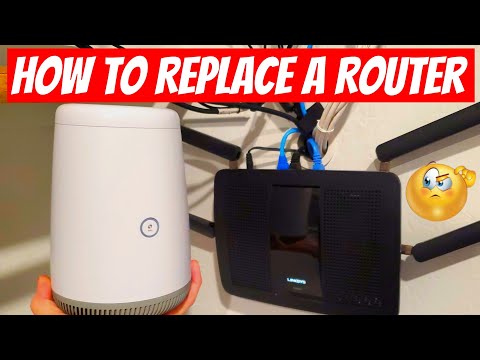
Before swapping out your old router, configure the new one with the same settings:
Once your new router is configured:
Once your new router is powered on, check for connectivity:
Replacing your router doesn’t have to be stressful. By preparing your settings in advance and following these steps, you can switch devices seamlessly and ensure a strong, uninterrupted connection.
hi everyone and welcome back on today's episode we're going to replace our old wireless router with the new router from centurylink and we're going to show you how to swap these devices out quickly and easily that way your network is only down for a minute or less guaranteed next on the ultimate tech hub so guys this thinks this router is four years old now it's not wi-fi six and we've had issues with this router with connectivity going in and out randomly so it's time to replace it this is our new centurylink wireless router if you look in the back we have one lan port four lan ports same as our linxus router the only difference is there's no mounting screws in the back to mount this to the wall but that's okay i have a shelf and that's rogo and guys if you like these kind of videos be sure to check out our playlist ultimate home networking and ultimate home automation we have dozens of videos that can help you understand networking and home automation okay the first thing we need to do is to program this new router with the exact same ssid password and security protocols as the linksys router so the main reason why we're going to program this router the same as the linxus router is that once we're all connected with a new router and we turn this on all the iot devices network devices will connect automatically with no issues so first let's go ahead and plug the power in to the router and then plug the ethernet cable one end into the lan and one end into the back of the pc all right guys we're all plugged in and we're ready to program the router so first in your browser window type in 192.168.0.1 sometimes the address can be 192.168.1.1 it just depends on the router next type in the provided password next you want to go to wireless setup we'll make all the changes here first you want to change the network name or the ssid this name needs to match the one on your original router in hours is rebels01 2.4 gigahertz and next make sure the security type is the same wpa2 personal which is the same on the linksys router next use the custom password and this password needs to be the same as the original router all right we're ready to install the new router all right plug in the power for the new router okay next i'm going to unplug this wire that comes from our fiber optic modem i'm going to plug it into the wan connection up here on the back of our new router okay we're going to plug this into the van connection here and just a heads up all the wires you see are cat6 make sure i have enough slack in here to get to it okay there we go next we're going to plug these two in there as well hopefully i have enough as well so we're basically plugging all the wires from the old router into the new router so you may or may not have the same situation but whatever wires you have in your old router you need to plug them into the new router and lucky for me i had enough slack in the wires behind the wall to reach the new router and if i didn't i'd have to run some new wires and once you plug these wires in you should have green lights on the new router and we have all green lights now let's turn this off i don't need this i'm going to unplug it as well for now i'm going to have to put this wire run it up through the hole out here eventually i think i'll leave the router mounted for a while it looks pretty cool so the goal of today's video was to show you how to install a new router and replace an existing router with the least amount of downtime as possible and from the time we unplugged everything from the old router and plugged it into the new router it was less than one minute so we achieved our goal our tablets iot devices tvs and smartphones are all connected and guys remember to visit our patreon page where two dollars a month helps keep this channel going and remember if you like these videos give a thumbs up and share it if you love it hit subscribe to keep this channel alive you

If your Wi-Fi signal is Weak and Slow, then your Wireless Router is in the Wrong Room! This video will teach you how to move ...

This is How To Build A Home Network with pfSense and as a Bonus we will install a VPN on the router! Private Internet Access ...

Do you want Faster Wi-Fi Speeds? This video shows you 1 simple setting to get faster Wi-Fi speeds! This works for all Wireless ...

In this video we will present the true reasons for the US Router Ban. There has been so much misinformation about this ban and ...

The Best way to improve any Home Network with Lagging Problems, High latency or Buffering issues is to Upgrade to a New wifi6 ...

This is our Test and Review of the TP-Link DECO XE70 Pro Wi-Fi6e Mesh Router system. Product Link: Best Deals! TP-Link Deco ...