
Learn how to boost your PS5's speed, stability, and responsiveness using proven network and console settings. From using Ethernet cables to configuring port forwarding and enabling performance mode, this guide covers everything to get the most out of your PlayStation 5.

There are several ways to drastically improve the performance of your PS5 for online gaming and high-performance titles:
These settings not only boost connection speed and reduce lag but also enhance graphical fidelity and smoothness across all your games.
In this video tutorial, you’ll learn how to significantly enhance the gaming performance of your PS5 console. It begins with the most important step: using a wired Ethernet connection. This reduces latency, increases stability, and ensures faster download and upload speeds compared to Wi-Fi. While the host jokes about using a Cat 8 cable, a Cat 6 or Cat 6A is more than sufficient. If your router has a dedicated gaming port, be sure to take advantage of it.
The video then explains how to port forward your PS5 for improved network connectivity. This involves assigning a static IP address to your console and adding specific port forwarding rules in your router’s settings. These rules help establish direct, uninterrupted communication between your PS5, game servers, and other players, optimizing your NAT type to Type 2.
To set up port forwarding:
After saving these entries and rebooting your devices, test your internet connection on the PS5 to verify a faster NAT Type 2 result.
Additional performance tips include:
These optimizations ensure your PlayStation 5 delivers the best possible experience across all your games.

A hot cup of coffee is a Fantastic Way to Help Support our Channel!☕https://www.buymeacoffee.com/ultimatetechhub Or You Can ...

Welcome back to The Ultimate Tech Hub. On today\'s episode we are reviewing the FUQIDO 6627 Gaming Chair. This Premium ...

We order the GeForce RTX 3080 Ultra XC3 GPU from Amazon and watch to find out if that\'s what we got and how much we payed ...

The Best Way To Get The Fastest & Most Consistent Internet Speeds is to Purchase the Highest-Quality Ethernet Cables.
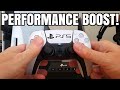
This video shows How To Port Forward a PS5 - Quick & Easy! You can get better performance on PS5 easily, if you Port Forward it ...

Welcome back to The Ultimate Tech Hub. On today\'s episode we are reviewing this budget wireless controller for your Nintendo ...