
A slow Ethernet connection can be frustrating, especially when your internet plan should be much faster. This guide covers 8 simple troubleshooting tips to help diagnose and fix slow wired internet speeds, including checking whether the issue affects one computer or the whole network, restarting the network adapter, rebooting the router, testing different ports, scanning for malware, replacing the Ethernet cable, and checking VPN software.
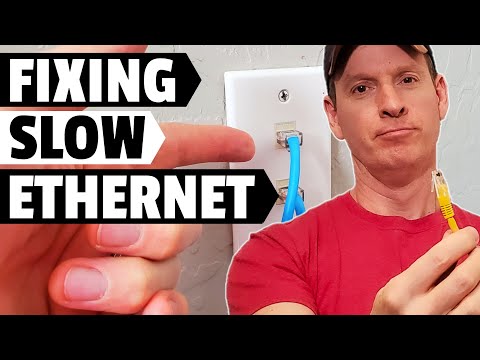
It does not matter how fast your internet plan is if your Ethernet connection suddenly slows down. A wired connection is usually more stable than Wi-Fi, so when Ethernet speeds drop, it can be especially frustrating. The good news is that many slow Ethernet problems can be fixed with a few simple troubleshooting steps.
Before replacing equipment or calling your internet service provider, it is important to figure out whether the problem is affecting one computer or the entire network. That first step will help you avoid wasting time on the wrong fix.
The first step is to determine whether the slow Ethernet connection is happening on one computer or across multiple computers. Open a search engine and search for an internet speed test. Run the test on each PC connected to your wired network.
If only one computer has slow Ethernet speed, the issue is likely related to that specific computer, its network adapter, cable, port, software, or settings. If every computer is slow, the issue is more likely related to the router, modem, switch, ISP connection, or a shared network device.
| What You Find | Likely Problem Area | Where to Start |
|---|---|---|
| Only one PC is slow | Computer, network adapter, cable, or port | Restart the computer and network adapter |
| All PCs are slow | Router, modem, switch, or ISP connection | Restart the router and check network equipment |
If only one computer has a slow Ethernet connection, start with the simplest fix: restart the computer. This basic step can resolve many temporary software, driver, and network issues.
A restart clears temporary system problems and reloads network services. It sounds simple, but it is often the fastest fix when one PC suddenly slows down.
Sometimes the network adapter starts acting strangely, which can result in slow Ethernet speeds. Restarting the adapter can refresh the wired connection without rebooting the entire computer.
On Windows, press Windows Key + I, then go to Network & Internet. Under network settings, select Change adapter options. Right-click your Ethernet connection and choose Disable. Wait about 10 seconds, then right-click the Ethernet connection again and choose Enable.
After the adapter reconnects, run another speed test to see if the Ethernet connection has returned to normal speed.
Windows includes a built-in network adapter troubleshooter that can scan for connection issues and attempt repairs. This tool can help identify and fix common problems, including issues related to network connectivity errors.
Whenever possible, run the troubleshooter as an administrator. This gives Windows access to a larger range of scanning, analysis, and repair options.
If the first three steps do not fix the problem, or if all computers on the network are slow, restart your router. This can fix issues affecting one computer or the entire network.
The easiest way is to turn the router's power switch off, wait about 10 seconds, and turn it back on. If your router does not have a power switch, unplug the power cord, wait 10 seconds, and plug it back in.
After the router finishes rebooting, run another speed test to see if your wired connection has improved.
If your computer is directly connected to a router or switch, try plugging the Ethernet cable into a different port. A faulty port or a port negotiating at a lower speed can cause slow Ethernet performance.
Check the status lights on your router or switch. In many cases, a green light indicates a gigabit connection, while yellow or orange may indicate a lower-speed connection. Light colors can vary by device, so check your router or switch manual if needed.
Some types of malware can use a large amount of network resources, which can rob your system of bandwidth and make your Ethernet connection feel slow.
A malware scan is a smart step if your speed issue affects only one computer or if the slowdown started suddenly. The video recommends using Malwarebytes to scan the system. After installation, run a scan and remove any malicious files that are detected.
A bad Ethernet cable is one of the most common causes of slow wired internet. Frequent plugging and unplugging can wear out the RJ45 connector. A damaged cable, loose connector, or bad termination can cause slower speeds, connection drops, or inconsistent performance.
If you have an extra Ethernet cable available, swap it in and test again. Use a cable rated Cat5e or better. Cat6 is an even better choice if you want a stronger cable option for gigabit networking.
VPNs can provide privacy while browsing the internet, but they can also slow down your connection. If your VPN server is overloaded, far away, or poorly performing, your Ethernet speed may appear much slower than expected.
Disconnect the VPN and run a speed test again. If your speed improves, the VPN was likely part of the problem. You can also try switching to a different VPN region or server to see if performance improves.
Here is a quick checklist to work through when your wired connection slows down:
A slow Ethernet connection does not always mean your internet service is the problem. In many cases, the cause is a temporary computer issue, a network adapter glitch, a router problem, a bad cable, malware, or VPN software.
Start by identifying whether one device or the entire network is affected. Then work through the troubleshooting steps one at a time. With a simple process of elimination, you can often restore your wired internet speed without replacing expensive equipment.
Hi guys. On today's episode, we are going to show you how to fix a slow Ethernet connection.
It does not really matter how fast your internet connection is from your ISP if your Ethernet suddenly slows to a snail's pace. This can be one of the most frustrating situations when it comes to networking. Today, I have eight quick troubleshooting tips to help fix a slow Ethernet connection.
Before we start with the eight troubleshooting tips, it is very important to diagnose whether one computer has a slow Ethernet connection or if all your computers have a slow Ethernet connection.
My first recommendation is to check all your computers for a slow Ethernet connection. Search for an internet speed test, run the test, and do this on all your PCs.
Now, let's assume only one PC is affected on your network.
Restart your computer. This is a simple fix that can resolve a lot of issues.
At times, your network adapter may start acting strange, and this can result in a slow Ethernet connection.
Press Windows Key + I, then go to Network & Internet. Under Change your network settings, select Change adapter options. Right-click your Ethernet connection and select Disable. Wait about 10 seconds, then right-click again and select Enable.
Your Ethernet connection may return to regular speed after the adapter restarts.
Windows includes an integrated network adapter troubleshooter. This troubleshooter can scan and attempt to fix or repair network issues. One common issue it can help with is the "Windows cannot connect to this network" error.
Whenever possible, run this troubleshooter as an administrator. This enables a larger range of scanning, analysis, and repair options.
If none of the first three troubleshooting tips fix your slow Ethernet connection, it is time to restart your router. This tip can resolve issues with one PC or multiple PCs on a network.
If all of your computers are slow on the network, you can skip the first three troubleshooting tips and restart the router first.
There are two ways to restart your router. The easiest way is to turn the power switch off, wait 10 seconds, and power it back on. If your router does not have a power switch, unplug the power cord, wait 10 seconds, and plug it back in.
This tip can fix issues affecting the entire network.
If your computer is directly connected to the router or switch, try using a different port to see if that speeds up your connection.
If you see a green light on that port, that usually indicates gigabit speeds. However, if you see yellow or orange, that may indicate non-gigabit speed, which can mean a slower Ethernet connection.
Some types of malware use a large number of network resources, and this can rob you of bandwidth.
One recommended way to scan for malware is to use Malwarebytes. Download and install Malwarebytes, then scan your system.
If Malwarebytes finds any malicious files, select them and delete them. If you run a scan and there is no malware, move on to the next troubleshooting tip.
One of the most common issues with Ethernet cables is wear from frequent unplugging and plugging in. The RJ45 connector can become faulty with heavy use.
If you have an extra Ethernet cable available, try swapping it out. Make sure the replacement cable is rated Cat5e or, even better, Cat6.
VPNs are useful because they provide privacy while browsing the internet, but they can also slow things down.
Make sure the VPN you choose has multiple servers around the world. If it does, you can switch your region and connect to a different server. This may or may not improve your Ethernet speed.
I hope these eight tips help you fix your slow Ethernet speed.
As usual, I want to thank you for watching. If you like this video, give it a thumbs up and share it. If you love it, hit subscribe to keep this channel alive. Thanks again for watching.

This is our Home Networking Tour 2023! This includes all devices in our Network Panel Enclosure and outside the enclosure.

On today\'s episode of the Ultimate Tech Hub we are going to show you where the ethernet jack goes to in your house. We have ...
Welcome back to the Ultimate Tech Hub. On this episode we will show you how to install 2 different wireless routers in one single ...
On today\'s episode of the Ultimate Tech Hub we are going to show you where the ethernet jack goes to in your house. We have ...

Cat 8 or Fiber for your Home or Business Network? Best Deals On Cat 8 and Fiber Cables: Cat 8 Ethernet Cable 50 ft,1.5ft 6ft 10ft ...

A hot cup of coffee is a Fantastic Way to Help Support our Channel!☕https://www.buymeacoffee.com/ultimatetechhub Or You Can ...