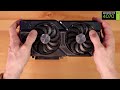
hi everyone and welcome back to the
ultimate tech hub
on today's episode we're going to show
you how to update your drivers
on your nvidia geforce gtx graphics
cards
we're going to show you how to update
two different drivers
we're going to update the studio driver
from the nvidia website
then we'll update the game ready driver
using the geforce experience
app on your desktop now you can update
both drivers
through the website or through the
geforce experience app
but for this video lesson we'll show you
both ways
that way there's no confusion and we'll
show you how to enable
or disable the auto update feature and
we'll explain the benefits of both
so first let's go ahead and update the
studio driver
this is the link to the nvidia website
and i'll have a link in the description
below also
so you might be asking what is a studio
driver
first let's talk about the nvidia studio
itself
nvidia studio is a new software and
hardware platform
utilizing technology to make creative
work easier and more efficient
it consists of powerful gpus that
accelerate content creation
and the nvidia studio drivers deliver
the best compatibility and performance
for creative applications so to answer
your first question
what is a studio driver the nvidia
studio driver is a free software
download designed specifically for
creative content
for artists creators and 3d developers
the nvidia studio driver provides the
best performance and reliability
so now we're on the nvidia website you
want to go to drivers
and manually find your gpu ours is the
1660 ti
once you input your product series and
your product
then go ahead and hit search and the
results of that search
will be below whenever you download a
driver whether it's a game ready or
studio driver
update the most recent version and the
recent version will be at the top
now you'll need to download the file
before you can install it and typically
i use my download folder for all my
downloads
once it's finished downloading
hit okay and while we're waiting for it
to install
make sure to hit subscribe to keep this
channel alive
[Music]
and now it's going to check the system
compatibility
and we're all good click agree and
continue
we'll use express installation
[Music]
and now there'll be a desktop shortcut
and to finish the installation
you'll need to restart your computer and
that's it
that's how you install the studio driver
from the website
now let's go ahead and install the game
ready driver from the geforce experience
app on your desktop first thing
obviously is open the geforce experience
app
you'll need to go to drivers and look
for game ready driver
now hit download while the game ready
driver is downloading
let's talk about both drivers and you
may be asking yourself
which driver should i install if you're
an avid gamer
then choose game ready drivers however
if you're a content creator
and you do animation or photography or
videography
or graphic design choose the nvidia
studio driver
but if you're both a gamer and a creator
choose
game ready drivers it simply works well
with both situations
and lastly let me show you how to enable
or disable
the auto update feature so the question
is should you enable auto updates for
your drivers
well that depends if you've ever had
that black screen issue
and then you roll back a driver to fix
the issue then out of the blue
you get an automatic driver update and
you're back to the black screen
so my preference is to disable automatic
updates
and every three or four weeks you can
manually look for your driver updates
via the website and you can do a quick
google search of that update to find out
if it's got any bugs in it
well guys i want to thank you for
watching and as usual if you like these
videos give a thumbs up and share it
if you love them hit subscribe to keep
this channel alive
thanks again for watching
[Music]